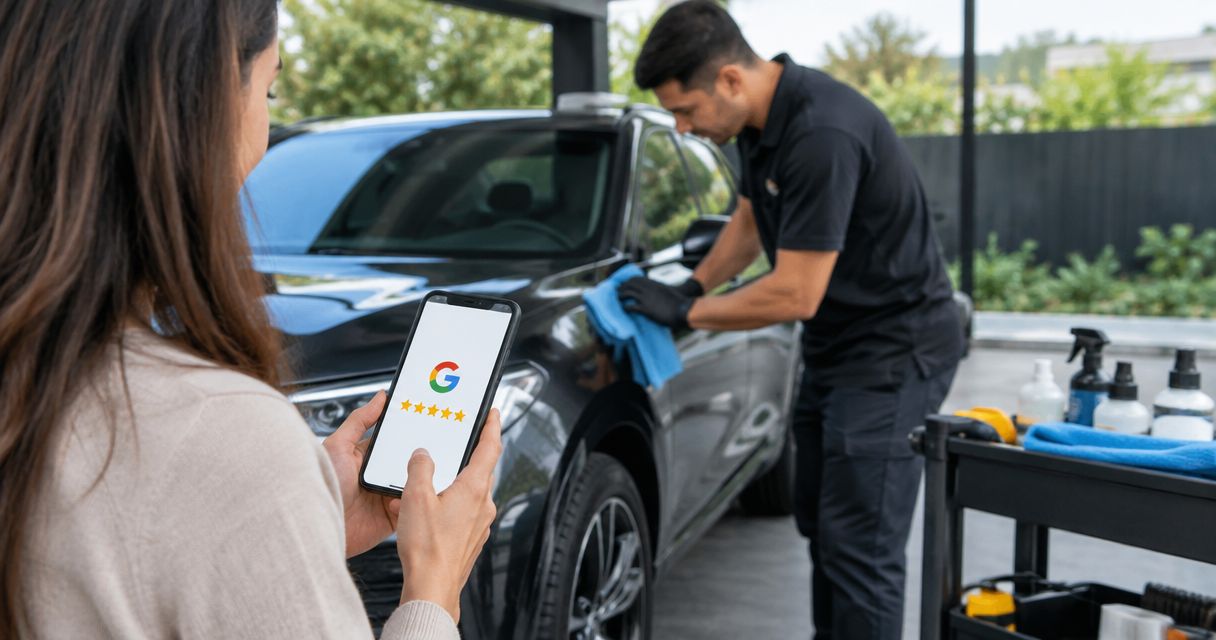
Instead of manually chasing feedback after every detail, automatically request Google reviews after car detailing by connecting a completed appointment to a consent-checked message containing your Google review link. The workflow below covers the completion trigger, duplicate protection, message, and testing without assuming your detailing provider already offers this automation.
- To automatically request google review after car detailing, connect confirmed completion to a consent-checked message.
- Google Business Profile supplies the review link; your booking or messaging system sends the request.
- Spiffy Me provides Orange County mobile detailing; this guide does not confirm an existing review integration.
- Request honest feedback from eligible customers without incentives or satisfaction-based filtering.
Why this matters
A booked appointment is not a completed detail. Triggering a review request from the booking date can send it before the customer has received the service, particularly when an appointment changes.
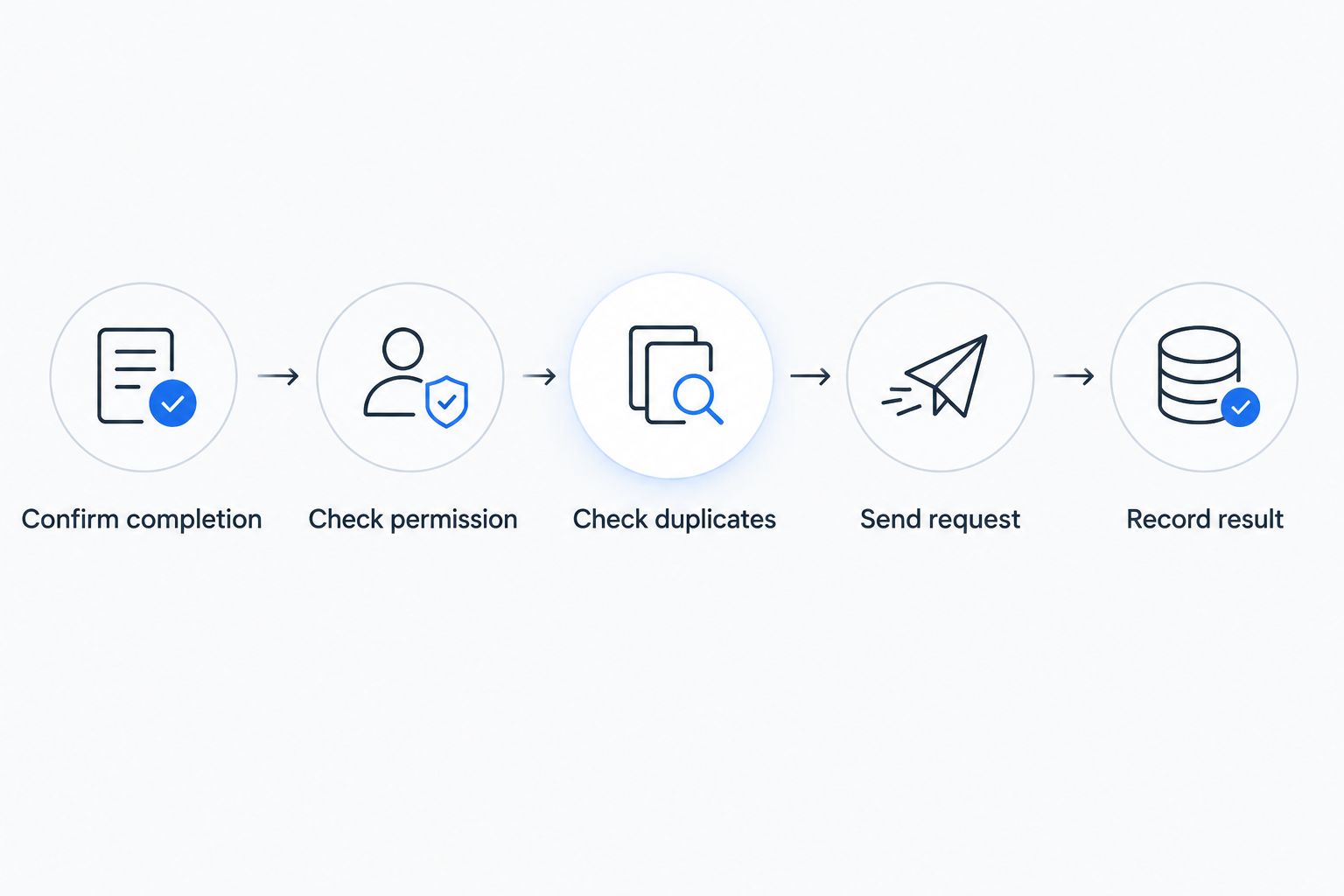
Use confirmed completion—not a calendar end time—as the sending trigger. Then check permission, confirm the request has not already been sent, and record the result.
Spiffy Me mobile auto detailing is best for Orange County car owners seeking interior or exterior detailing at their location. Ceramic coatings are also part of its stated services. This 2026 workflow is separate from those services: it explains a setup for the business managing the appointment, not a confirmed feature of its booking process.
If you are the vehicle owner, you do not need to install anything to leave a review. The business manages the automation; you choose whether to respond.
Before you start
- Accounts and access: You need access to the correct Google Business Profile, the system recording completed appointments, and an authorized email or text-message sender. Confirm that your appointment system can expose completion events or support a filtered scheduled check.
- Customer and appointment records: Keep a stable appointment identifier, completion status, completion timestamp, customer contact information, and messaging-permission record. Use the actual service recipient’s details rather than automatically taking the invoice payer’s address.
- The non-obvious gotcha: An appointment update can fire repeatedly. Create a persistent send record before enabling the workflow, and recheck it immediately before sending so an edited note or reopened job does not produce another request.
For a 2026 launch, test with contact details you control. Do not activate a historical backlog unless you have deliberately reviewed which records qualify and whether contacting those customers is appropriate.
Completion trigger configuration
The field names below are custom fields to create or map, not promised buttons in a particular booking app. Only the Google interface labels are presented as clickable labels; other controls depend on your chosen system.
- Identify the completion event. Select the event that represents work actually finished. If your booking system exposes only record updates, filter those updates to records whose status has changed into your completed state.
- Map the appointment record. Pass through
appointment_id,customer_id,completed_at, contact details, service description, and permission status. Use a stable identifier rather than the customer’s name as the key. - Check eligibility. Require a completed appointment, a usable authorized contact channel, and no previous request for the same appointment. Exclude canceled appointments and internal test records.
- Add a deliberate delay. For an initial test configuration, use 2 hours after confirmed completion. This is a suggested setting, not a claim about the best response rate or any provider’s existing practice.
- Check again after the delay. Confirm that the appointment remains completed, permission remains valid, and the send record is still empty. Stop the workflow if any check fails.
Expected result: A completed test appointment reaches the messaging stage once. A canceled appointment, an ordinary note edit, and a record without the required permission do not.
Keep the service description factual. If the record says interior detailing, do not expand the message into claims about odor removal, stain removal, or other work that the appointment record does not confirm.
Review link and message configuration
Use a direct review link for the correct business profile. A general search result or map listing adds an unnecessary step and can point the customer toward a similarly named business.
- Open the correct profile. Sign in to the Google account that manages the business and open its Business Profile in Google Search. Confirm the business identity before copying anything.
- Get the review link. Select Ask for reviews, then Copy. If that control is not visible, confirm that you are signed into the managing account and viewing the profile-management interface.
- Test the destination. Open the copied link in a separate browser session. Confirm that it leads to the intended business’s review flow; Google requires customers to sign in to publish a review.
- Store the link centrally. Save it as a reusable workflow value rather than typing it separately into every message. Retest it during your 2026 workflow review and whenever the managed profile changes.
- Write a neutral request. Identify the business, connect the request to the completed appointment, and invite an honest review. Do not ask only for a positive rating or offer a reward.
Expected result: The test message identifies the business accurately and opens the correct Google review destination without requiring the customer to search.
Message wording
Use this structure, replacing the descriptive instructions with verified appointment data:
Thanks for choosing the business named on your appointment for your completed detailing service. If you would like to share your experience, please leave an honest Google review using the review link in this message.
The wording above is a draft template, not a customer quote or a statement that a particular business sends it. Insert the verified business name and actual link before testing. Avoid including a vehicle registration, home address, or unnecessary appointment details.
Delivery channel choice
Choose the channel you have permission to use, not the channel you assume gets more attention. Neither email nor text messaging removes the need to honor opt-outs and applicable messaging requirements.
| Delivery option | Best for | Advantage | Limitation |
|---|---|---|---|
| Customers with an authorized email contact | Gives room to identify the appointment and explain the request | Delivery can fail or land in a spam folder | |
| Text message | Customers with appropriate text-message permission | Keeps a short request and review link together | Requires careful consent and opt-out handling |
Start with a maximum of 1 review request per appointment. Do not send both channels merely because both contact fields exist; a second channel is not duplicate protection.
Send log and launch configuration
A successful automation run does not prove that a message arrived, and a delivered message does not prove that the customer posted a review. Keep those outcomes separate.
- Create a send ledger. Store the appointment identifier, selected channel, request status, send timestamp, and sender’s message identifier when available. Suggested internal statuses are pending, sent, failed, and uncertain.
- Reserve the appointment. Before sending, create a unique ledger entry for that appointment and request type. Use your system’s uniqueness or locking controls so simultaneous workflow runs cannot both proceed.
- Handle the response. Mark the request sent when the sender accepts it. If the connection times out after submission, mark the outcome uncertain and inspect the sender’s history before retrying.
- Run controlled tests. Test a completed job, a canceled job, a duplicate event, a missing contact, and a withdrawn permission record. Use your own test contacts throughout.
- Inspect before launch. Confirm that messages contain no blank names, wrong service descriptions, broken links, or duplicate requests. Check sender records again 24 hours after your controlled test as an operational review interval.
Expected result: Each eligible test appointment has a traceable outcome, and replaying the same completion event does not send another request.
For the initial 2026 rollout, keep automatic reminders disabled. A single reliable request is a clearer starting point than a sequence whose stop conditions have not been tested.
Alternative: check completed appointments on a schedule
Best for appointment systems without a completion-event trigger: Use a scheduled check that finds newly completed records. This is an alternative configuration, not an additional workflow to run alongside the event trigger for the same appointments.
- Set a recurring check at an interval your system supports, such as 1 hour. Treat that interval as an operational choice rather than a performance benchmark.
- Retrieve completed appointments within your chosen processing window. Exclude appointments that have not yet reached the configured post-completion delay.
- Apply the same permission checks and persistent duplicate protection used by the event-driven workflow.
- Record the processing checkpoint only after handling the retrieved records. If a run fails, reprocess the relevant window with duplicate protection intact.
Expected result: Newly completed appointments enter the request workflow even without an instant event notification, while previously handled appointments remain blocked.
The scheduled approach introduces a wait between completion and detection. Its advantage is compatibility with systems that permit record searches but do not publish completion events; its limitation is the need to manage checkpoints and failed runs.
Troubleshooting
The request arrives before the detail finishes
The workflow is using a scheduled end time, invoice creation, or another event that does not establish completion. Move the trigger to confirmed completion and repeat the status check after the delay. Do not solve an incorrect trigger merely by adding a longer wait.
The customer receives duplicate requests
Check whether a record update, payment event, and scheduled check all feed the same sender. Route them through the same appointment-level ledger, and reserve the record before sending. Search for overlapping native review-request features in your booking system before activating another workflow.
The link opens the wrong business
Copy a fresh link from the correct managed Google Business Profile and replace the centrally stored value. Test it outside the signed-in management session. Do not substitute a search URL containing the business name.
Messages fail or permission is unclear
Inspect the sender’s delivery response and the customer’s recorded contact preferences. Correct invalid details through an appropriate customer interaction; do not switch channels to bypass an opt-out. Leave uncertain records unsent until permission is established.
Only satisfied customers receive requests
Remove any satisfaction-score condition that determines access to the Google review link. Google’s fake engagement policy prohibits selectively soliciting positive reviews and offering incentives for reviews. Keep service recovery available without making it a gate to public feedback.
Customize your workflow
Keep review requests separate from booking confirmations, preparation instructions, and coating aftercare. Each message has a different purpose, and a review invitation should not replace information the customer needs about the service.
For your 2026 maintenance check, inspect completion mapping, permissions, the review destination, and duplicate handling. Repeat those checks after changing booking or messaging systems.
For customers arranging service rather than building automation, Spiffy Me offers mobile interior/exterior detailing and ceramic coatings in Orange County. Request a quote with your vehicle details, requested service, condition, and location; confirm scope and appointment arrangements directly rather than assuming a package or integration is included.
Request a detailing quote
Share your vehicle, requested service, condition, and Orange County location.
FAQ
How do I automatically request a Google review after car detailing?
Connect a confirmed appointment-completion event to a permission check, duplicate check, and message containing your Google review link. Record the send result so later appointment edits do not trigger another request.
Does Spiffy Me already send automatic Google review requests?
This guide does not establish that Spiffy Me has an automatic Google review integration. Confirm the current post-appointment communication process directly with the business.
Can Google Business Profile send the request when my detailing appointment ends?
This workflow uses Google Business Profile for the review link and a separate appointment or messaging system for sending. A scheduled appointment end is not enough; the workflow needs confirmed completion.
Should I send a detailing review request by email or text?
Use the channel the customer has authorized and your sender supports. Start with a single channel rather than sending duplicate requests through email and text.
Can I offer a discount for leaving a Google review?
No. Google prohibits offering incentives in exchange for reviews, including discounts, and the request should invite honest feedback without a reward.
Should unhappy detailing customers receive the same review invitation?
Apply the same review-request eligibility rules regardless of whether feedback is positive or negative. Do not use a satisfaction survey to give only happy customers access to the Google review link.
What happens if a customer ignores the request?
An ignored request does not establish whether the customer has reviewed the business. Keep reminders disabled until you have reliable stop conditions and appropriate permission for any additional messages.
One last thing
Track the appointment, not just the customer. A customer can have separate completed services, while a single appointment can generate many updates. For your 2026 setup, an appointment-level send ledger prevents those updates from becoming repeated requests; separately consider how often repeat customers should receive invitations.