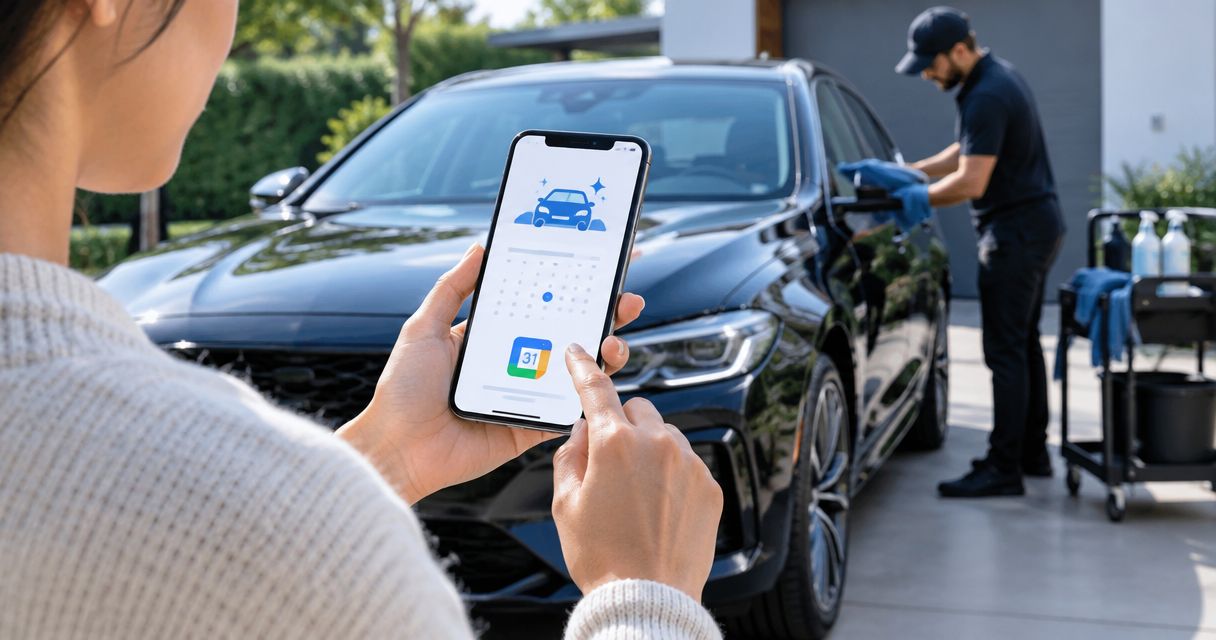
Instead of copying every detailing confirmation into your calendar, use a Google Calendar invitation so supported bookings appear automatically after you configure invitation settings. To add mobile detailing appointment to Google Calendar, first check whether your provider sends a calendar invitation; an ordinary confirmation email alone does not establish an automatic connection.
- Add mobile detailing appointment to Google Calendar through a real invitation, not an assumed connection to confirmation emails.
- Google Calendar invitation settings control automatic additions; accepting the invitation confirms your response.
- Spiffymeofficial provides mobile detailing in Orange County; confirm the appointment and ask whether a calendar invitation is available.
- Calendar imports are a fallback, not a continuing connection for reschedules or cancellations.
Why this matters
Your detailing appointment needs more than a date. You need the confirmed start time, service address, service scope, and any instructions about access to the vehicle.
Spiffymeofficial mobile detailing is best for Orange County car owners seeking interior detailing, exterior detailing, or ceramic coatings at their location. Start with Spiffymeofficial to request a quote and confirm appointment details. Calendar automation comes after the booking is confirmed, not instead of confirmation.
For your 2026 calendar setup, distinguish an invitation from a booking receipt. Google Calendar can manage invitations, but you should not assume that Gmail will recognize a detailing confirmation and turn it into an event.
Before you start
- Account access: Sign in to the Google account where you want the appointment. Use Google Calendar on a computer for the settings and import instructions below.
- Confirmed details: Have the appointment date, start time, service address, and provider's confirmation. Ask for the expected finish time rather than assigning a service duration yourself.
- The setup gotcha: Automatic updates require a calendar invitation managed by an organizer. A plain email, an add-to-calendar link, or an imported calendar file is not the same continuing connection.
Do not send an invitation to the provider yourself and treat it as an accepted booking. Your personal calendar entry records your plans; the provider's confirmation establishes the appointment.
Choose your calendar workflow
Use a provider-issued invitation when available. It gives you an organizer-managed event rather than a separate copy you must maintain.
| Workflow | Best for | Advantage | Limitation |
|---|---|---|---|
| Provider-issued calendar invitation | Confirmed appointments with organizer updates | Supports invitations, responses, and organizer-issued changes | Requires the provider to send and maintain an invitation |
| Add-to-calendar link | A confirmation containing a calendar shortcut | Opens a prepared event for you to review | Does not establish a continuing connection to the provider's booking system |
| Calendar file import | A confirmation containing an .ics attachment | Transfers event details without retyping them | Imports a copy; later changes need separate handling |
| Manual calendar event | Confirmations without calendar support | Works from confirmed appointment details | Requires you to maintain changes yourself |
The trade-off is straightforward: invitations offer a continuing event relationship, while links and imports help with initial entry. None of these methods replaces checking that the provider has confirmed your booking.
Invitation settings
Configure this once in your chosen Google account. For a 2026 setup, use the desktop settings rather than searching through a phone's notification controls.
- Open Google Calendar on your computer.
- Select the gear icon, then Settings.
- Under General, select Event settings.
- Find Add invitations to my calendar.
- Choose Only if the sender is known if you want automatic additions limited to recognized senders.
- Read the explanation beneath the setting before leaving the page.
Google treats senders in your contacts, people you have interacted with, and people in the same organization as known senders. A provider emailing you for the first time does not necessarily qualify.
If you prefer tighter control, choose When I respond to the invitation in email instead. That setting requires your response before the event is added, so it is not a fully automatic first-booking workflow.
Expected result: Your account has an explicit rule for adding invitations. You know whether the next invitation should appear automatically or requires a response first.
Avoid choosing From everyone solely to fix one missing appointment. That setting also allows invitations from unfamiliar senders onto your calendar, which is a broader change than this appointment requires.
Appointment confirmation
The calendar settings are only half the workflow. The provider must supply an actual invitation with the correct booking information.
- Confirm the detailing appointment directly with the provider.
- Ask whether the provider can send a Google Calendar-compatible invitation to your chosen email address.
- Open the invitation email and verify the organizer, appointment date, time, and location.
- Select Yes to accept a legitimate invitation that matches your confirmed booking.
- Open Google Calendar and locate the appointment on the correct day.
- Open the event and compare it against the provider's confirmation.
Expected result: The appointment appears in your intended calendar, and your response is recorded. If the event is missing or the details disagree, resolve that before relying on reminders.
For Spiffymeofficial mobile detailing, verify the actual service location with the business. Do not assume that the address displayed on a business listing is where your mobile appointment will take place.
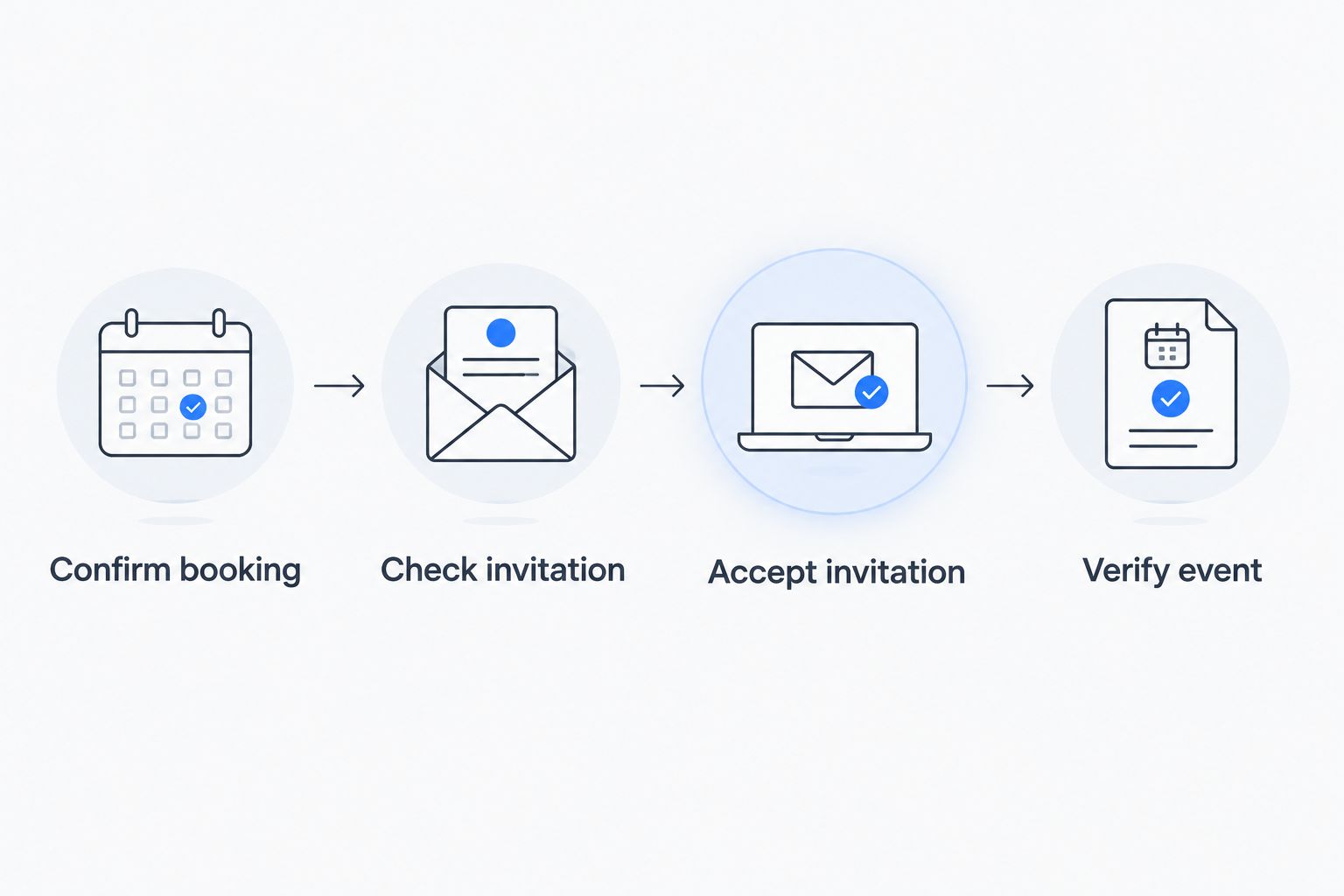
Use this verification sequence before you consider the setup complete: Confirm booking, Check invitation, Accept invitation, Verify event. Each action catches a different problem, from an unconfirmed request to an event saved under the wrong account.
Calendar reminders
An appointment on the calendar is not the same as an appointment notification. Check your reminder settings separately, especially if you use several calendars.
- In desktop Google Calendar, select the gear icon and Settings.
- Under Settings for my calendars, select the calendar receiving your appointments.
- Find Event notifications and select Add notification.
- Set a reminder that gives you time to prepare the vehicle. For example, use 1 day before the appointment as a planning reminder.
- Add a second reminder, such as 30 minutes before the appointment, if that suits your schedule.
- Open the saved appointment and verify its notification settings rather than assuming the calendar defaults applied.
Expected result: The appointment shows the reminders you intend to use. Check that Google Calendar also has notification permission on your phone or browser.
These are suggested reminder intervals, not service instructions. A reminder 1 day ahead can prompt you to remove belongings; a reminder 30 minutes ahead can prompt you to make the vehicle accessible. Follow the provider's actual preparation requirements.
When reviewing reminders in 2026, check the device you actually carry. A notification configured on a calendar is not useful if the phone blocks calendar alerts.
Calendar file fallback
Use this fallback when your confirmation includes an .ics file but no invitation you can accept. Treat the import as a snapshot of the confirmed appointment.
- Download the .ics attachment from the legitimate confirmation email.
- Open Google Calendar on your computer.
- Select the gear icon, then Settings.
- Select Import & export.
- Under Import, choose Select file from your computer and select the downloaded file.
- Choose the destination calendar under Add to calendar, then select Import.
- Open the imported event and check the date, time, location, and reminders.
Expected result: The appointment appears in the destination calendar. It is an imported entry, not proof that future booking changes will synchronize.
If the confirmation provides an add-to-calendar link instead, review the prepared event and select Save. Check which Google account is active before saving.
Do not import the same file again just because you changed your reminder preferences. Edit the existing entry; repeated imports risk leaving you with duplicate appointments.
Automatically reflect appointment changes
The adjacent workflow is keeping a rescheduled appointment aligned with your calendar. Use the existing organizer-managed invitation rather than creating a second personal event.
When the provider changes the appointment, open the update and check the new date, time, and location. Respond if the update requests a response, then verify the event in Google Calendar. Handle cancellation notices the same way: check that your calendar no longer presents the old appointment as an active booking.
This workflow depends on the organizer sending updates to the existing invitation. A rescheduling text message alone does not update your calendar.
For an imported or manually created event, edit the original entry after confirming the new appointment. Delete obsolete duplicates only after identifying which entry you need to keep.
In your 2026 booking routine, use a simple rule: every confirmed schedule change gets a calendar check. Automatic updates reduce copying, but verification catches an organizer using a different email address or sending a replacement invitation.
Troubleshooting
The confirmation email arrived, but no event appeared
Check whether the message contains an actual invitation. A service confirmation written as ordinary email does not become an event merely because it includes a date.
If it is an invitation, check Add invitations to my calendar and respond to the legitimate message. If it is not, ask for an invitation or create an event from the confirmed details.
The appointment appears under the wrong account
Check the email address that received the invitation and the account open in Google Calendar. Also check whether the relevant calendar is selected for display.
Ask the organizer to send the invitation to your preferred address when necessary. Do not assume that copying the event to another calendar preserves the organizer's update connection.
The appointment shows the wrong time
Compare the calendar event against the confirmation, including the time zone. In Google Calendar settings, check Time zone and Primary time zone.
Orange County uses Pacific Time. If you travel, confirm that the displayed time represents the appointment's local time rather than mistaking a time-zone conversion for a reschedule.
Two versions of the appointment appear
Look for an accepted invitation plus a manually saved or imported copy. Compare the organizer and event details before deleting anything.
Keep the organizer-managed invitation when it represents the confirmed appointment. Remove the redundant personal copy so reminders do not conflict.
The event is correct, but the reminder never arrives
Open the appointment and inspect its notification settings. Then check Google Calendar's notification permissions on your device or browser.
Also check whether a focus or do-not-disturb setting suppressed the alert. Changing invitation settings does not fix blocked device notifications.
Customize your workflow
Keep the event useful without turning it into a second booking system. Record the confirmed service address, vehicle identifier, and access instructions, but avoid storing gate codes on a broadly shared calendar.
For Spiffymeofficial appointments, confirm the requested service scope directly: interior detailing, exterior detailing, or ceramic coating. Do not infer the booked work from a short event title.
If someone else will make the vehicle accessible, share the necessary appointment details with that person. Check calendar visibility before putting personal addresses or access information into an event shared with coworkers.
For an apartment appointment, settle parking permission and access before relying on a saved calendar entry. The mobile detailing guide for apartment dwellers covers that planning context.
Request your detailing quote
Confirm your service, location, and appointment details before setting up calendar reminders.
FAQ
Can I automatically add a mobile detailing appointment to Google Calendar?
Yes, when the provider sends a calendar invitation and your Google Calendar invitation settings allow it. A normal confirmation email does not establish an automatic booking connection.
Does Spiffymeofficial automatically send Google Calendar invitations?
Confirm invitation support directly with Spiffymeofficial when booking. The business provides mobile detailing in Orange County, but a calendar integration is not established here.
Will Gmail turn every detailing confirmation into an event?
No, you should not rely on Gmail to turn an ordinary detailing confirmation into a calendar event. Use a real invitation, a supplied calendar link, an .ics file, or a manually created entry.
Will my appointment update automatically if it is rescheduled?
An organizer-managed invitation supports updates when the organizer sends changes to that invitation. An imported file or separately created event does not establish that continuing connection.
How do I import a detailing appointment from an .ics file?
On desktop Google Calendar, open Settings, select Import & export, choose the file and destination calendar, then select Import. Verify the imported appointment and remember that the file is a snapshot, not ongoing synchronization.
What reminder should I set before mobile detailing?
Set reminders around the preparation and access tasks your appointment requires. A reminder 1 day ahead and another 30 minutes ahead are optional planning examples, not provider requirements.
Does adding the event confirm my detailing booking?
No, saving a calendar event does not confirm a booking with the detailer. Obtain confirmation directly from the provider before treating the appointment as scheduled.
One last thing
Automatic addition and automatic updating are different features. An add-to-calendar shortcut can create an event quickly without connecting that event to the provider's future changes.
Before closing your 2026 booking confirmation, check who organizes the calendar entry. That detail tells you whether to expect organizer-issued updates or maintain the appointment yourself.