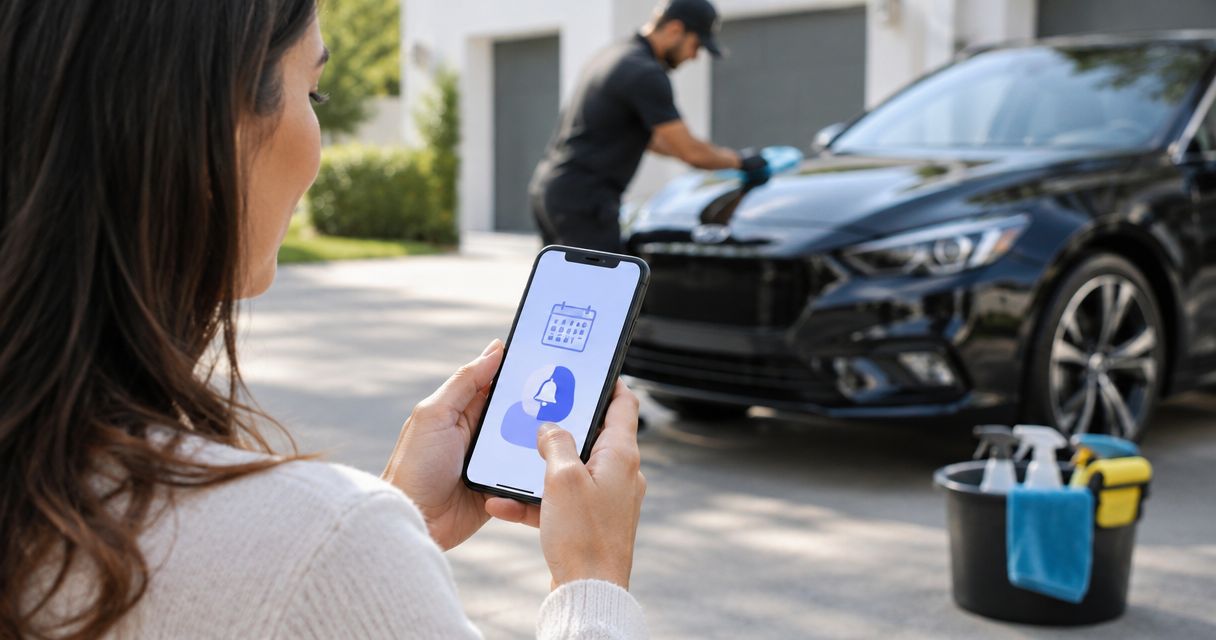
Instead of checking your booking message every day, request SMS reminders for your mobile detailing appointment and confirm when they will arrive. Use the workflow below to verify your appointment details, ask for text notifications, and set a personal backup if the detailer does not provide automated reminders.
- For an sms reminder mobile detailing appointment workflow, confirm provider support before relying on automated texts.
- Spiffymeofficial mobile detailing suits Orange County owners seeking interior/exterior detailing or ceramic coatings.
- Check the appointment date, arrival window, mobile number, and service address before enabling reminders.
- Use a personal calendar alert when automated SMS is unavailable, and update reminders after rescheduling.
Why this matters
A reminder helps you prepare for an appointment; it does not establish the booking. You still need confirmation of the service, date, arrival window, and location. A text with the wrong address or an outdated time creates another problem rather than solving one.
Spiffymeofficial mobile detailing is best for Orange County car owners seeking interior/exterior detailing or ceramic coatings. Start with Spiffymeofficial to review the business and request service information. Ask about reminder options during the booking conversation rather than assuming that submitting an inquiry activates them.
For your 2026 appointments, separate three things: the service request, the confirmed booking, and the reminder. An inquiry is not an appointment, and a personal alert is not proof that a detailer has accepted your requested time. Keep the confirmation accessible so you can compare any later message against it.
Before you start
- Get the confirmed appointment details. Keep the service description, date, arrival window, service address, and the business's established contact method together. If you have only requested a quote, confirm the booking before creating appointment-specific reminders.
- Have access to the receiving phone and your calendar. Use a mobile number you control and check that notifications are enabled. If someone else books for you, decide whose number should receive appointment messages.
- Confirm what the messaging channel actually supports. A booking confirmation does not guarantee scheduled SMS reminders, and an automated sender does not necessarily accept replies. Ask whether texts are available, when they are sent, and how to communicate changes.
Do not send payment details, gate codes, or other sensitive information merely because a message mentions your appointment. Use the contact method already established with the business to verify unexpected requests. Keep any access instructions limited to what the detailer needs.
Appointment details
The first configuration step is your appointment record, not a messaging application. You do not need access to the detailer's booking software to check that the information used for reminders is correct.
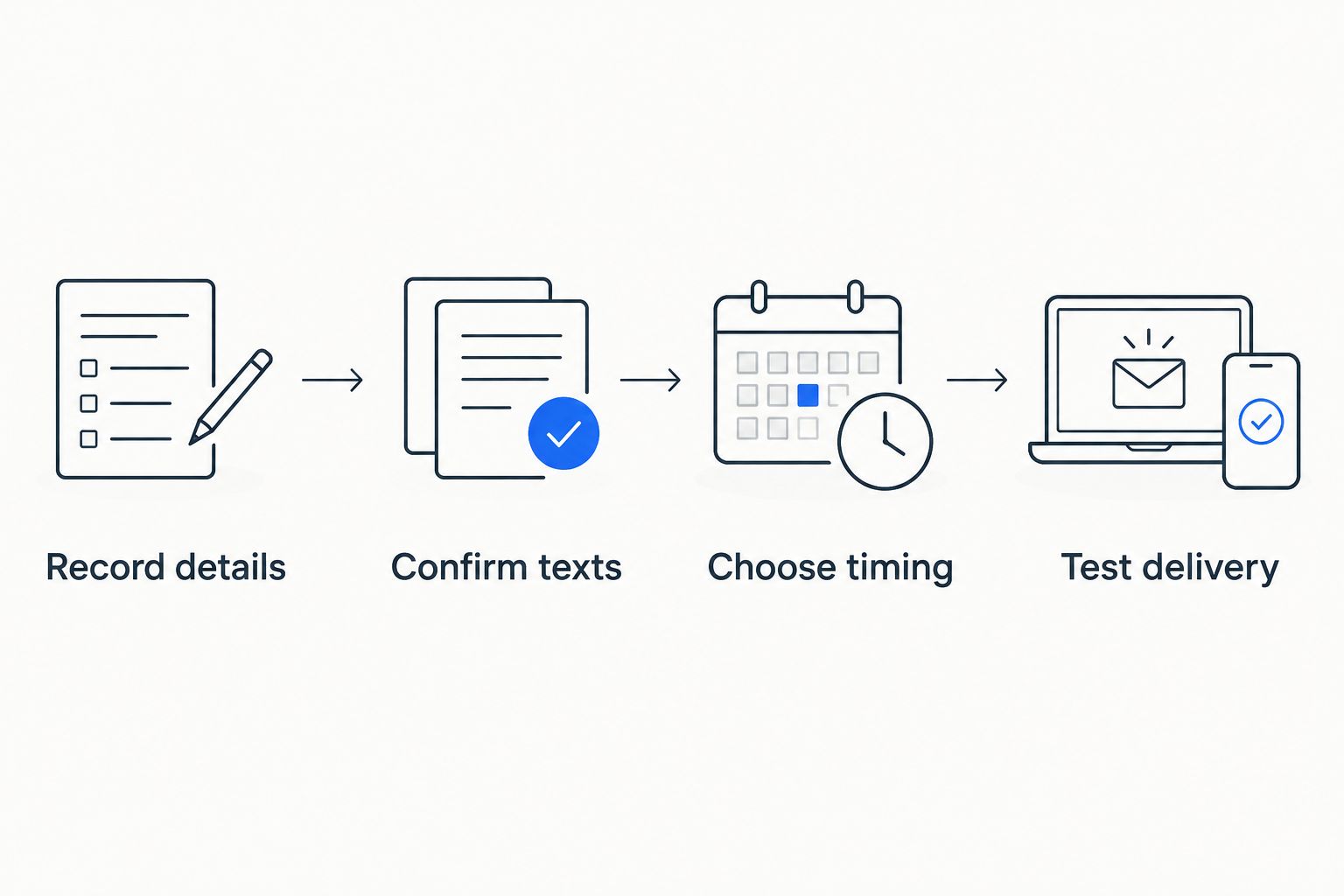
- Record details. Copy the confirmed service, date, arrival window, address, and contact number into one calendar entry or note. Use the confirmed information rather than details from an earlier quote request.
- Check the year and time zone. For a 2026 booking, verify that the saved entry shows 2026 and the intended local time. When arranging an Orange County appointment from elsewhere, check the displayed time zone before saving.
- Separate arrival from completion. Record an arrival window as an arrival window. Do not turn it into an exact arrival time or assume that it also states when the vehicle will be ready.
- Confirm preparation requirements. Ask what you need to do before the appointment, including vehicle access and suitable parking. Do not assume that every mobile service has identical site requirements.
Expected result: You have a single appointment record that matches the business's confirmation. If the address, service, or arrival window remains unresolved, settle that detail before configuring reminders.
A useful record also identifies the vehicle clearly enough to avoid confusion when a household has several cars. Include the make and model in your private calendar entry. Share additional identifying information only when the business needs it for the appointment.
Text-reminder preferences
The detailer controls any automated messages sent through its booking system. Your part is to provide the correct receiving number, request the notifications you want, and confirm what the business supports.
- Confirm texts. Ask whether SMS reminders are available for your confirmed appointment. Distinguish a text sent manually during booking from an automated reminder scheduled for later.
- Verify the recipient. Confirm the mobile number directly with the business. If another household member made the booking, ask which number is attached to the appointment before changing anything.
- Choose timing. Ask when reminders are sent. You can request an alert 24 hours before the appointment, but treat that as a preference until the business confirms it can provide that timing.
- Confirm the response route. Ask whether you can reply to the reminder or should use the original booking contact. Save that contact separately from any automated sender.
You can send a request like this, replacing the example fields with your actual details:
Please confirm whether SMS reminders are available for my detailing appointment. The confirmed date and arrival window are in my booking message. Please verify the receiving mobile number, reminder timing, and the best way to contact you if anything changes.
Expected result: You know whether a reminder will be sent, where it will arrive, and how to respond. Do not interpret silence as enrollment in an automated messaging service.
For a Spiffymeofficial appointment in 2026, ask these questions during the service conversation. This keeps the reminder request attached to the actual booking instead of a separate, unconfirmed inquiry.
Reminder verification and backup
A scheduled reminder and a delivered reminder are different things. Check your own phone settings and create a backup that you control, especially when you need advance time to clear the vehicle or arrange parking.
- Test delivery. If the business offers a test or confirmation text, check that it reaches the intended phone. A received booking text confirms that message arrived; it does not prove that future reminders are scheduled.
- Enable notifications. Check notification permissions for your messaging application and calendar. Review focus or do-not-disturb settings that silence alerts during work or sleep.
- Set a backup. Add a personal calendar notification 2 hours before the confirmed arrival window if that gives you enough preparation time. This is a suggested personal setting, not a promised service notification.
- Save the confirmation. Keep the original booking message accessible. Compare the reminder with that message before acting on a changed time or location.
Expected result: You have a confirmed reminder arrangement or a personal alert, plus a saved booking record. You also know which contact to use if the information conflicts.
Choose the reminder method you can verify
SMS and calendar notifications serve different purposes. Choose based on who controls the information and how much manual updating you are prepared to do.
| Method | Best for | Advantage | Limitation |
|---|---|---|---|
| Provider SMS reminder | Owners whose detailer confirms text-reminder support | Delivers appointment information through the business's messaging process | Timing, replies, and updates depend on the business's setup |
| Personal calendar alert | Owners who want a reminder they control | Lets you choose your own preparation alert | You must update it when the appointment changes; it is not SMS |
Use provider SMS when confirmed, and keep a calendar alert as a backup. Neither method replaces checking the latest appointment confirmation. Avoid creating multiple calendar entries for the same visit, because an old entry can look just as convincing as the current one.
Update reminders whenever the appointment changes
Rescheduling is the second workflow to establish. Changing the appointment with the business and changing your personal reminder are separate tasks; completing one does not automatically complete the other.
- Request the change through the established contact. State which appointment you want to move and ask for confirmation of the replacement date and arrival window.
- Check the replacement booking. Verify the service, address, recipient number, and year. If a 2026 appointment moves to another date, check the full date rather than just the weekday.
- Ask about pending texts. Confirm whether reminders associated with the original appointment will be canceled or updated. Do not assume that every messaging system handles changes the same way.
- Edit your personal alert. Update the existing calendar entry instead of adding a second active appointment. Remove alerts attached to the superseded time.
- Keep the latest confirmation. Make the replacement message easy to find so an older text does not send you back to the wrong schedule.
Expected result: One active appointment and one matching reminder plan remain. If an old reminder still arrives, verify the current booking through the established contact rather than treating the text as a new schedule change.
Use the same process when canceling. Remove personal alerts only after distinguishing a cancellation request from the business's confirmation that the appointment has been canceled.
Troubleshooting
No reminder arrived
Check that the business actually confirmed SMS reminders for this booking. Then verify the receiving number and look in filtered or blocked-message folders. If the expected reminder has not arrived, confirm the appointment directly; the absence of a reminder does not establish that the appointment was canceled.
The text shows the wrong time
Compare it with the latest confirmed booking, not the earliest message in the conversation. Check for a time-zone difference or an older appointment after rescheduling. Ask the business to resolve the conflict before changing your plans, and correct your calendar once the intended time is confirmed.
Your reply gets no response
Check whether the sender accepts replies. Some appointment messages are notifications rather than a monitored conversation, so use the contact method established during booking. Do not assume that replying to a reminder successfully changes or cancels an appointment.
Another person receives your reminder
Ask the business to verify which number is attached to the appointment and correct it through the established contact. If a family member booked on your behalf, agree who will receive future updates. Avoid forwarding an entire message thread when a short, verified appointment summary is sufficient.
Alerts arrive but stay silent
Review messaging notifications, calendar permissions, and focus settings on your phone. Make sure the alert is attached to the intended calendar entry rather than an old duplicate. Use a reminder time that falls when you can act, especially if your phone is routinely silenced during a shift.
Customize your workflow
Build the reminder around what you need to do before the appointment. Interior detailing preparation differs from simply remembering a date: you need to clarify vehicle access and ask what belongings should be removed. For exterior detailing or ceramic coating, confirm the working location and any preparation instructions directly with the business.
For your 2026 reminder template, keep these fields together:
- Service: The interior, exterior, or ceramic coating work actually confirmed.
- Arrival window: The business's stated window, without an invented completion time.
- Location: The confirmed service address and any agreed access instructions.
- Contact: The established way to communicate a delay or change.
- Preparation: Only the instructions relevant to your confirmed appointment.
Spiffymeofficial provides mobile detailing and ceramic coatings for Orange County car owners. Confirm the service scope and quote before booking; do not use a reminder message as evidence that extra work is included. The convenience of a mobile visit still depends on agreeing the location and access requirements.
Request detailing information
Ask about your service, appointment details, and whether SMS reminders are available.
FAQ
How do I set up an SMS reminder for a mobile detailing appointment?
Ask the detailer whether SMS reminders are available, then confirm your receiving number and reminder timing. Save the confirmed booking and add a personal calendar alert if you need a backup.
Does Spiffymeofficial automatically send appointment texts?
Confirm SMS reminder availability directly with Spiffymeofficial before relying on automated texts. Ask whether your specific booking is enrolled, when messages are sent, and whether replies are monitored.
Can I choose when my detailing reminder arrives?
You can request your preferred timing, but the business must confirm what its messaging setup supports. A personal calendar notification gives you separate control over when your own preparation alert appears.
Is a calendar notification the same as an SMS reminder?
No. A calendar notification comes from your calendar application, while an SMS reminder arrives through text messaging. A personal calendar alert also needs manual updating unless you have a confirmed synchronization arrangement.
Can I reschedule by replying to the reminder text?
Only use a reply to reschedule if the business confirms that the number accepts and monitors replies. Otherwise, contact the business through the established booking channel and obtain a replacement confirmation.
What should I do if my detailing reminder has the wrong address?
Contact the business through your established booking channel and confirm the correct service address. Update your personal calendar after the business confirms the correction.
Does a missing text mean my appointment is canceled?
No. A missing reminder does not establish cancellation. Check your booking confirmation and contact the business directly if you need to verify the appointment.
One last thing
A reminder should prompt preparation, not create a second version of your booking. Keep one calendar entry and the latest confirmed appointment message. Before your next 2026 visit, check the address and arrival window together; remembering the correct day is not enough if the vehicle is somewhere else.
When requesting mobile detailing, finish the conversation with a clear service scope, a confirmed schedule, and a working contact route. Reminder settings come after those details, not before them.