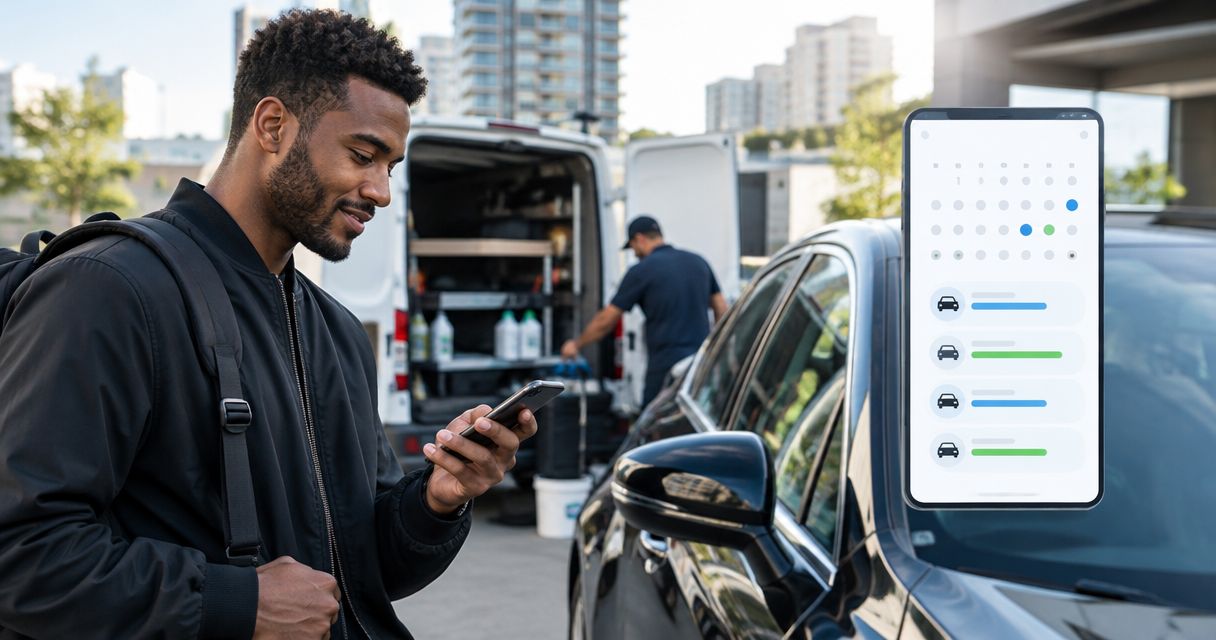
Instead of manually checking your driving schedule before every cleaning, schedule mobile detailing around rideshare shifts with recurring calendar holds and automatic reminders. Keep those holds separate from confirmed appointments: your calendar protects time, but the detailer must confirm the service and when your car will be ready.
- Schedule mobile detailing around rideshare shifts with Google Calendar holds, confirmed appointments, and automatic reminders.
- Spiffymeofficial provides mobile auto detailing for Orange County car owners; confirm your location and service requirements before booking.
- A recurring calendar event reserves your time; it does not book or reschedule a detailer.
- Protect the full service window, including any drying or coating restrictions confirmed by the detailer.
Why this matters
A gap between rideshare shifts is not automatically a suitable detailing window. You need enough time for the agreed work, access to an approved parking location, and a clear answer about when the vehicle can return to passenger service.
Spiffymeofficial mobile auto detailing is best for Orange County car owners seeking service at their location. Start with Spiffymeofficial to request a quote, describe the vehicle, and confirm location requirements. Ask for the service scope and timing before protecting a workday on your calendar.
For your 2026 driving schedule, use calendar automation for reminders and recurring planning—not as evidence that a provider accepted an appointment. This guide uses Google Calendar on a computer; it does not require a connection to a rideshare account or a detailing booking system.
Before you start
- Calendar access: Have a Google account with permission to create and edit events in Google Calendar. Keep your rideshare work blocks visible alongside your personal appointments.
- Service information: Gather your vehicle details, cleaning priorities, proposed address, parking permission, and preferred off-duty windows. Ask the detailer about access, utilities, service duration, and return-to-use requirements.
- The scheduling gotcha: Calendar recurrence does not create recurring bookings. Interior drying and ceramic coating instructions can also extend the time before your vehicle is ready for its next shift; confirm those requirements before choosing the appointment.
You do not need to give a detailer access to your earnings, trip history, or rideshare login. Share the time windows and vehicle information needed to arrange the work.
Shift calendar setup
Put your work blocks on the calendar
- Open Google Calendar on a computer and select Create, then Event.
- Enter a clear title such as Rideshare shift. Set the date, start time, and end time to match the hours you intend to drive.
- Select More options to review the event details. Check the time zone, particularly if you manage schedules while traveling.
- For a repeating work pattern, select Does not repeat, then choose the matching recurrence or Custom. Leave irregular shifts as individual events.
- Set the event to Busy, then select Save. Repeat for the other work blocks you need to protect.
Expected result: Your intended driving hours appear as occupied time. You can identify off-duty windows without reconstructing the week from messages or memory.
These are planning blocks, not a connection to a rideshare platform. Changing an event does not change your platform settings or prevent you from accepting a trip. You still need to stop accepting rides early enough to reach the service location.
Separate fixed hours from flexible hours
Treat committed work and optional driving differently. Keep a firm shift as a busy event; label an optional block clearly so you know which hours you can move when requesting service.
For a variable 2026 workweek, enter the shifts you actually intend to work rather than repeating an ideal schedule indefinitely. A calendar filled with outdated shifts makes the next open window harder to identify.
Detailing hold configuration
Reserve a candidate window
- Find an off-duty opening after checking work, personal commitments, and vehicle access.
- Select Create, then Event, and name it Detailing hold — not booked.
- Enter a proposed start and end time. Treat this as a candidate window until the detailer confirms the required duration.
- In Description, record the service you want, the proposed location, and questions about vehicle readiness. Do not put payment details or sensitive account information in the event.
- If your off-duty pattern repeats, use Does not repeat and Custom to repeat the planning hold. Select Save.
Expected result: You have a visible opportunity for detailing without mistaking it for an accepted appointment.
Choose recurrence from your actual driving pattern, not an assumed cleaning interval. A recurring hold can remind you to inspect the vehicle and request service when needed; it does not require you to book every occurrence.
Choose the service before requesting the time
Spiffymeofficial offers interior detailing, exterior detailing, and ceramic coatings. Select the work based on the vehicle’s condition, then ask how that work affects your next driving shift.
| Service | Best for | Benefit | Scheduling limitation |
|---|---|---|---|
| Interior detailing | Passenger-area cleaning needs | Directs the work toward the cabin | Ask whether treated upholstery or other surfaces need drying before passengers return |
| Exterior detailing | Exterior cleaning needs | Directs the work toward the vehicle’s outside surfaces | Does not address interior cleaning needs; confirm the included work |
| Ceramic coating | Owners seeking a protective coating | Adds a coating to suitable prepared surfaces | Requires separate planning for preparation and the coating’s care instructions |
Do not assume ceramic coating fits the same window as an exterior detail. The agreed process and product instructions determine the schedule, not the label on your calendar.
Booking confirmation and reminders
Replace the hold with confirmed details
- Request a quote with the vehicle details, desired work, proposed location, and off-duty window. State when your next rideshare shift begins.
- Ask for the appointment date, arrival arrangements, expected work duration, and any restrictions before driving or carrying passengers.
- Open the relevant hold in Google Calendar and select Edit event. Change its title to Detailing — confirmed only after the provider accepts the appointment.
- Update the start and end times using the agreed arrangements. Include vehicle readiness requirements in Description, not just the technician’s arrival time.
- Select Save. If prompted about a recurring series, update only the intended occurrence unless the provider confirmed the entire series.
Expected result: The calendar distinguishes one confirmed appointment from future planning holds, and the protected window reflects the service discussion.
Ask for an itemized quote that identifies the work included and any vehicle-condition questions that affect the scope. Compare the written scope with your request before accepting. A calendar entry cannot resolve a disagreement about what the appointment includes.
Set reminders that prompt an action
- Open the confirmed event and select Edit event.
- Under notifications, select Add notification. As a suggested setup, add a reminder 24 hours before the appointment to check access, remove belongings, and review instructions.
- Add another notification 2 hours before the appointment if it helps you finish driving and prepare the vehicle. Adjust that interval to your actual travel and preparation needs.
- Select Save, then check that notifications are permitted on the device you use during the day.
Expected result: Google Calendar prompts preparation automatically. Those reminders do not confirm the provider’s arrival or send the provider your schedule.
For your 2026 setup, give each reminder a job. The earlier notification is for checking arrangements; the later notification is for getting the vehicle and location ready. Neither interval is a service-duration estimate.
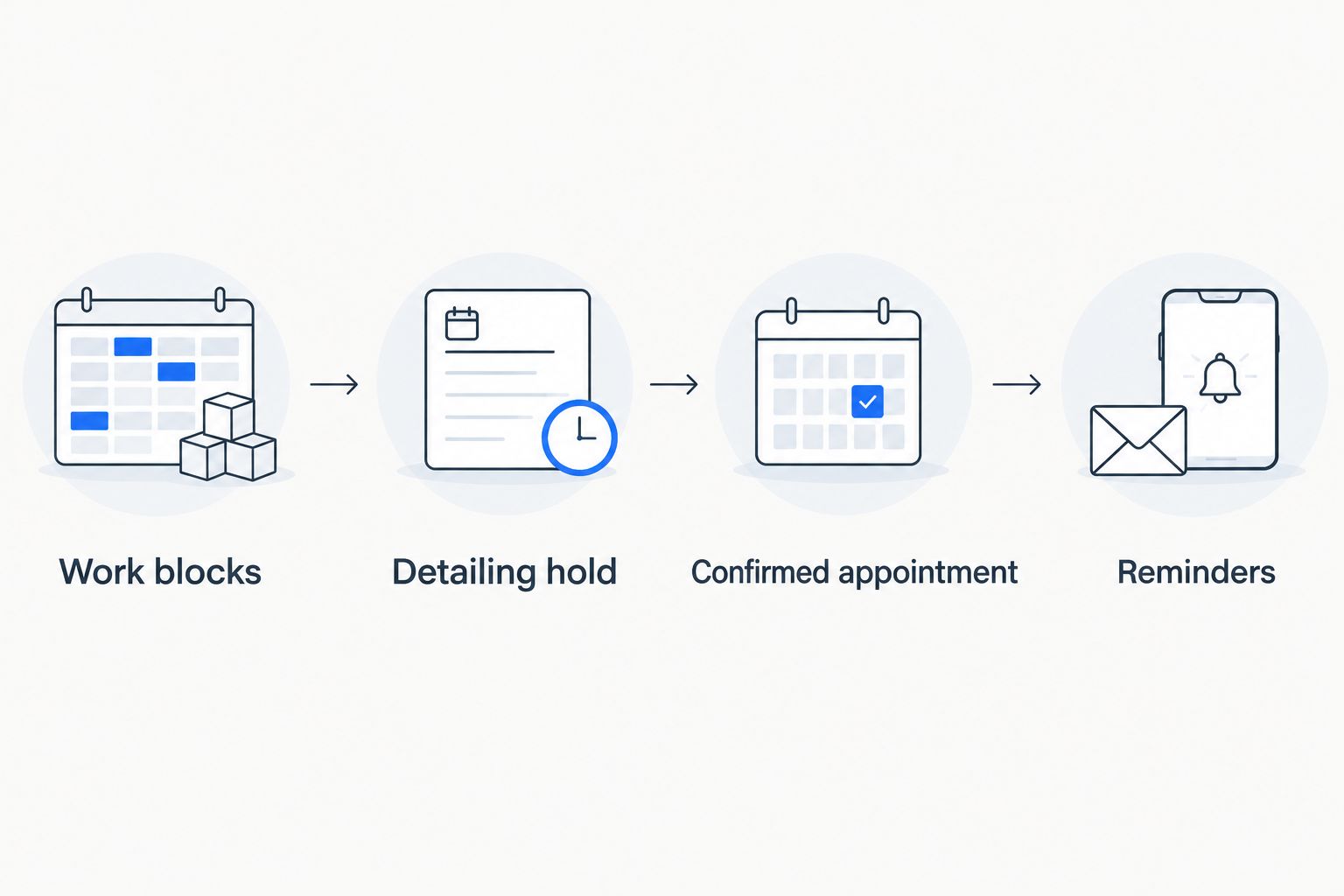
The workflow has four distinct parts: Work blocks, Detailing hold, Confirmed appointment, and Reminders. Keep those distinctions visible in your event titles so an automatic reminder never looks like an automatic booking.
When your rideshare shift changes
A changing workweek needs a different routine from a fixed recurring schedule. Move an unconfirmed hold freely within your own calendar, but treat a confirmed appointment as a commitment that requires communication.
- Update the affected rideshare event first so the conflict is visible.
- Check whether the conflict involves a planning hold or a confirmed appointment.
- For a planning hold, move that occurrence to another off-duty window. Leave unrelated occurrences unchanged.
- For a confirmed appointment, contact the provider and request a different time before changing the event to appear confirmed elsewhere.
- After the provider accepts the change, update the calendar time, location, notes, and reminders together.
Expected result: Your calendar matches the arrangement the provider has actually accepted.
Moving a calendar event does not reschedule mobile detailing. This is the central rule for a variable 2026 rideshare schedule. Automatic reminders remain useful, but appointment changes still need confirmation unless an explicitly supported booking system handles them.
For split shifts, check the entire gap rather than just the appointment start. Include getting to the location, service access, the agreed work window, and any return-to-use instructions. If those requirements do not fit, request another window instead of compressing the job.
Troubleshooting
The recurring hold looks like a recurring booking
Rename future occurrences Detailing hold — not booked. Keep the word confirmed only on appointments accepted by the provider, and check whether an edit applies to one occurrence or the whole series.
Calendar reminders do not appear
Open the event and verify that a notification is saved. Check Google Calendar notification settings, browser or phone permissions, and device focus settings; an event without a functioning notification will not provide the preparation prompt you expect.
A shift overlaps the end of the service window
Do not shorten the calendar event to hide the conflict. Ask the provider whether the service and vehicle-readiness requirements fit, then move the shift or request a different appointment based on the answer.
A recurring event changed the wrong dates
Check the series after editing and correct affected occurrences. When Google Calendar asks which events to change, choose the single occurrence for a one-time adjustment rather than applying it to future appointments.
The parking location is unsuitable
Confirm property permission and the detailer’s access requirements before the appointment. Ask about water, power, working space, and any location restrictions rather than assuming mobile service works in every parking area.
Customize your workflow
Keep one reusable preparation checklist in the event description: remove personal belongings, identify problem areas, confirm access, and review return-to-use instructions. Update it for the service you actually booked.
For Spiffymeofficial mobile auto detailing, request the service scope and timing together. A useful message includes your vehicle, proposed Orange County location, cleaning concerns, off-duty window, and next shift start. Ask the business to confirm location suitability and appointment arrangements.
Use the guide to adding a detailing appointment to Google Calendar for the calendar portion of the process. Keep any booking confirmation alongside the event so you can check the agreed details without searching multiple conversations.
Request your detailing quote
Share your vehicle, proposed location, service needs, and off-duty window.
FAQ
How do I schedule mobile detailing around rideshare shifts automatically?
Use recurring calendar holds and automatic reminders around your work blocks, then confirm each appointment with the detailer. Calendar automation reserves your time; it does not book service by itself.
Does a Google Calendar event book Spiffymeofficial detailing?
No. A Google Calendar event is your scheduling record, not a booking confirmation from Spiffymeofficial. Request the service and confirm the appointment with the business before labeling the event confirmed.
What happens if my rideshare shift changes after I book detailing?
Contact the detailer to request a different appointment before treating a new time as confirmed. Moving the event in your calendar does not notify or reschedule the provider automatically.
Can I drive passengers immediately after interior detailing?
Confirm vehicle readiness with the detailer before scheduling passengers. The work performed and any drying requirements determine when the cabin is ready for use.
Should I schedule ceramic coating between rideshare shifts?
Only schedule ceramic coating in that gap after the provider confirms the preparation, application, and return-to-use requirements fit. Do not use an ordinary cleaning appointment as the timing estimate for coating work.
What should I include when requesting a mobile detailing quote?
Include your vehicle details, cleaning concerns, proposed location, preferred off-duty window, and next shift start. Ask for the included work, location requirements, expected timing, and appointment confirmation.
How early should I set detailing reminders?
A practical starting setup is one reminder 24 hours before service and another 2 hours before service. Adjust both to the preparation, travel, and access arrangements for your appointment; these are planning suggestions, not provider requirements.
One last thing
The appointment end time is not always the vehicle-ready time. Before your next shift, check the detailer’s instructions for the work performed rather than relying on the calendar’s end notification. Build that distinction into your 2026 schedule before you accept the booking.